16 September 2026By Stephane Cornille
A Free Artwork Inventory Spreadsheet for Dealers & Galleries


TL;DR: Start with a simple spreadsheet, but structure your artwork data properly from the beginning. This free template gives you the fields you need to manage your inventory now and makes it easier to move to dedicated software as your collection grows.
You don't need sophisticated software to manage your art if you’re just getting started. A spreadsheet is more than enough. But, once your collection grows beyond 50 artworks, it's worth starting to think about dedicated art inventory management software.
In the meantime, make sure you structure your data properly from the start. It’s much easier to do this while your collection is still small than to clean up thousands of artworks later when you decide to move to dedicated software.
The problem with starting from a blank spreadsheet is that you’ll end up adding columns one at a time, changing the structure, creating duplicate information and trying to work out how everything fits together. So I've put together a template artwork inventory spreadsheet that worked for my own collection.
Here's what each field is for.
SKU — Your unique inventory reference. [Read more about creating a SKU system here.]
Status — Available, sold, reserved, written-off, donated, etc.
Title — The title of the artwork.
Artist First Name/s — The artist's first name or names.
Artist Last Name — The artist's surname.
Year — The year the artwork was made.
Medium Category — Broad medium classification, e.g. painting, sculpture or print.
Medium — Full medium description, e.g. oil on canvas, watercolour on paper or bronze.
Dimensions — Height — Artwork height. Use either CM or IN consistently. Don't use paper sizes such as A3 or A4.
Dimensions — Width — Artwork width.
Dimensions — Depth — Artwork depth, where applicable.
Currency — Currency of the artwork price.
Price — Selling price.
Artwork Image — Image URL. Separate multiple URLs with a comma and space.
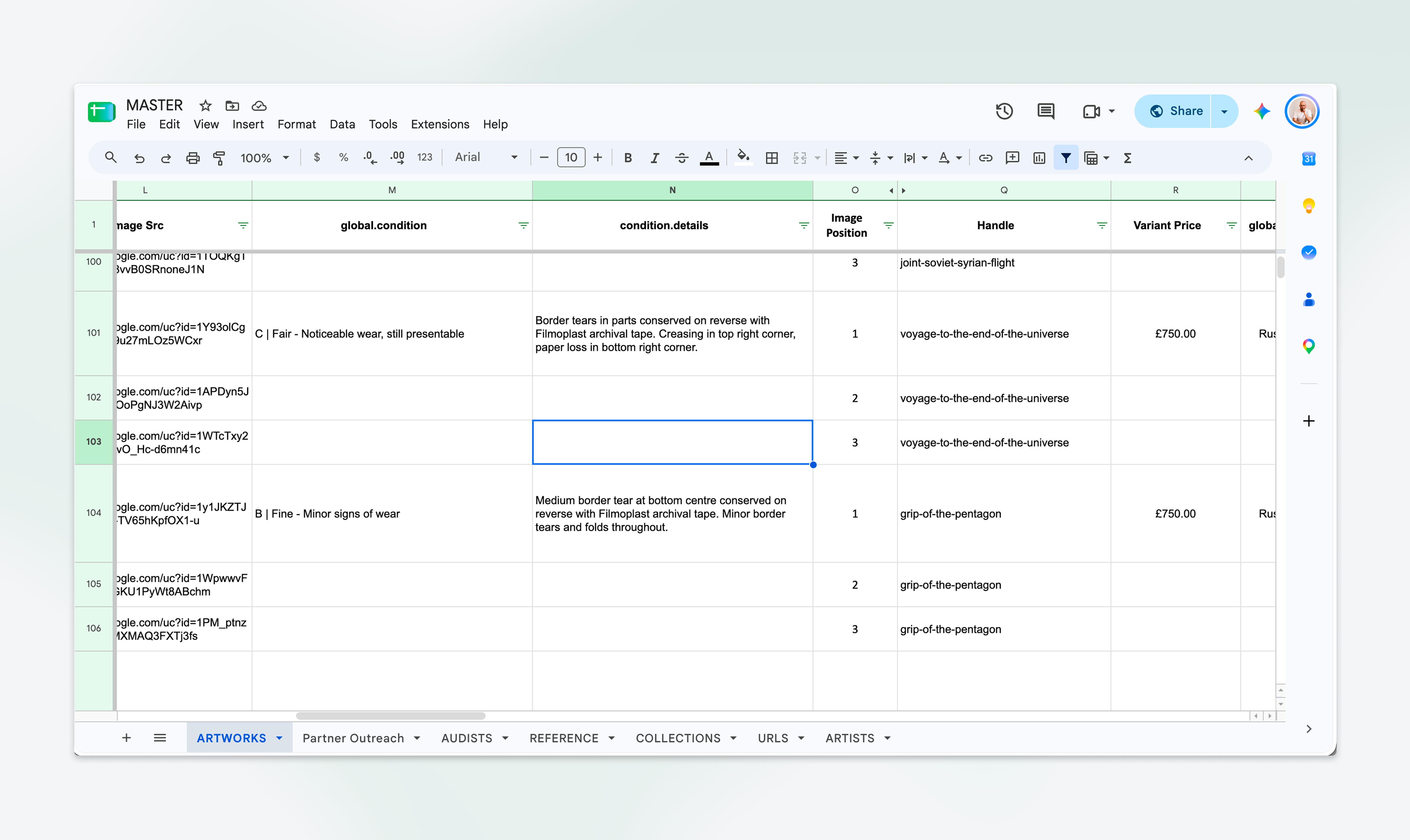
Condition — Overall condition using a consistent system, e.g. Excellent, Fine, Fair, Poor or A, B, C, D.
Condition Detail — More detailed information about the artwork's condition.
Description — Description of the artwork.
Quantity — Quantity, useful for editions and multiples.
Edition Info — Edition number, total edition size, Print Proof, Artist Print, etc.
Provenance — Ownership, restoration and exhibition history.
Tags — Searchable categories and keywords.
SEO Title — Search-engine title for the artwork.
Meta Description — Search-engine description for the artwork.
Image Alt Text — Description of the artwork image for accessibility, SEO and AEO.
Google Product Category — Product category used by Google Merchant Center.
Location — The main storage or location site.
Sub-location — Specific room, shelf, rack, drawer, etc.
Purchase Date — The date you purchased the artwork.
Purchase Amount — The amount you paid for the artwork.
FAQs
Why do I need a location and sub-location?
When you have fewer than 50 artworks, you probably know where everything is. As your collection grows, that becomes much harder. It's better to create a storage system while your collection is still small. Otherwise, you'll eventually have to go back and work out where every artwork is stored.
This becomes even more important when artworks are spread across different locations, in transit, being restored, on exhibition, out on loan or on consignment. The system doesn't need to be complicated. Every artwork should have a Location and a Sub-location.
The Location is the building or place where the artwork is stored, such as Almaty Apartment or London Warehouse.
The Sub-location is the specific place within that location. If you use plan drawers, for example, you could label them D1, D2, D3 and so on.
You could then record an artwork as Almaty Gallery, D3-34, meaning drawer 3, position 34. A simple system makes it much easier to find an artwork when you need it. Instead of searching through your collection for 30 minutes, you can find it in 30 seconds.
Why separate Medium Category and Medium?
Medium Category gives you a consistent broad classification, such as Painting, Sculpture or Print.
Medium contains the more precise description, such as oil on canvas, lithograph on paper or bronze.
This becomes useful once you have hundreds or thousands of artworks. You can filter by the broad category without losing the more detailed information.
Why do I need a SKU?
A SKU gives every artwork its own unique reference. Titles and artist names aren't reliable identifiers. You can have multiple artworks with the same title, and artists can have the same or similar names.
Your SKU should be unique, consistent and permanent. Don't reuse a SKU after an artwork has been sold or removed from your inventory.
Why should I tag artworks?
Tags let you search, filter and group artworks using information that doesn't fit neatly into your other fields. For example, you might tag an artwork with subjects, colours and themes such as landscape, mountains, propaganda, green, sky, blue and red. You can then find every artwork matching those tags without relying on the title, artist or medium.
Adding tags manually becomes a significant job when you have hundreds or thousands of artworks. This is one area where AI can help. KANDINSKY automatically generates subject, colour and other relevant tags for your artworks.
Why should dimensions be separate fields?
Keep height, width and depth in separate fields rather than entering something like 50 × 70 cm in a single cell. This allows you to sort, filter and convert dimensions later. For example, you can convert inches to centimetres without having to clean up the original data.
I'd also recommend choosing one unit and sticking to it. Don't mix centimetres and inches, and don't use paper sizes such as A3 or A4 instead of actual dimensions.
Why do I need a condition system?
If you buy or sell art on the secondary market, condition information is important. Without a consistent system, it's difficult to compare artworks or communicate their condition clearly. You could use Excellent, Very Good, Good, Fair and Poor, or simply A, B, C, D. The specific system matters less than using it consistently. At KANDINSKY, we use:
A | Excellent — Minimal to no signs of wear
B | Fine — Minor signs of wear
C | Fair — Noticeable wear, but presentable
D | Poor — Significant wear or damage
Then use Condition Detail to record the specific issues with an artwork, for example: Minor border wear throughout with paper loss on top right corner. This gives you a simple condition rating that can be filtered and compared, while keeping the detailed information needed when selling an individual artwork.
Why include SEO fields in an inventory spreadsheet?
If you sell art online, your artwork data isn't just for your own records. Search engines and AI search tools also need clear, structured information about your artworks.
SEO Title is the title that can appear in Google search results and browser tabs. It should clearly identify the artwork, usually with the artwork title, artist name and your business name.
Meta Description is the short description that can appear below the title in Google search results. It should explain what the page is about.
Image Alt Text describes what is shown in an artwork image. It makes your website more accessible and gives search engines more information about the image.
If you have hundreds or thousands of artworks, creating this information manually takes a lot of time. KANDINSKY automatically generates SEO titles, meta descriptions and image alt text for your artworks, artists, collections and pages.
What if I don't need all these fields yet?
You probably don't. If you're just starting out, you might only need SKU, title, artist, year, medium, dimensions, price and location. That's fine. Hide the columns you don't need and add them when you do.
The important thing is that the underlying structure is there. It's much easier to start with a sensible structure and add information as your inventory grows than to restructure thousands of artworks later.
Your spreadsheet will grow
A spreadsheet is a perfectly good way to start managing an art collection. You don't need expensive software just because you have 20 or 30 artworks.
But eventually, a spreadsheet starts becoming difficult to manage. You have hundreds or thousands of rows, more people working with the data, artworks moving between locations, images and documents to manage, and information that needs to be published across different channels.
That's the point where dedicated inventory software starts to make sense. I know this because I did exactly the same thing. KANDINSKY was built out of my own frustration managing thousands of artworks in a spreadsheet that had grown to more than 5,000 rows long and 60 columns wide.
KANDINSKY replaces spreadsheets and disconnected tools with one platform for managing, marketing and selling art. It's used by galleries, artists and collectors around the world, including Qazart, Belgilda Gallery, COMRADE, and Kiln Studio. Get started for €1 or join our community